


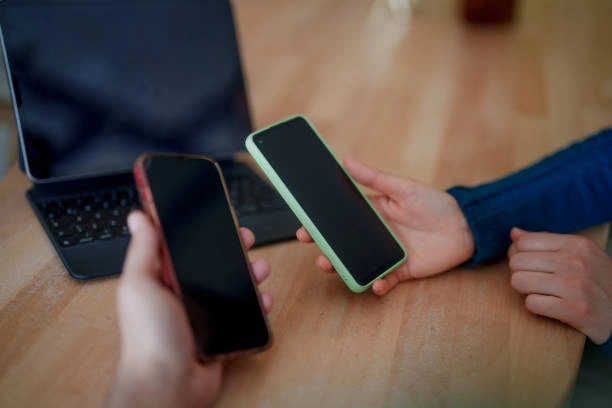
Transfer Data from Old Phone
Hello people,
Do you want to Transfer Data from Old Phone to New Phone easily?
Transfer Data from Old Phone to New Phone is now very simple. Many users upgrade phones but worry about losing data. Your contacts, messages, photos, and apps can move safely to your new device. Modern tools make this process fast and secure. Both Android and iPhone users can transfer everything in minutes. With the right method, you can complete it without stress. This guide explains different ways to move your important files quickly. Let’s learn how to make your phone switch easy and safe.
1. Use Built-in Transfer Tools
Every smartphone brand offers built-in tools for data transfer. These tools make it easy to move files from one phone to another. For Android users, Google’s Data Transfer Tool works perfectly. For iPhone users, Quick Start helps move data quickly. To start, connect both devices using a cable or Wi-Fi. Follow on-screen steps to select what data you want to move. Contacts, apps, and photos transfer automatically. Using built-in tools ensures the process is secure and efficient. Always back up important data before starting the transfer. This ensures nothing gets lost during setup.
2. Transfer Using Google Account Backup
Google Backup is a safe way for Android users to move data. It stores your contacts, apps, and settings securely in the cloud. When you set up your new phone, you can restore everything easily. To enable backup, go to “Settings” and tap “Google.” Choose “Backup” and turn it on. Wait for your old phone to finish syncing data. Then sign in with the same Google account on your new phone. Select “Restore from Backup” during setup. Within minutes, your apps, photos, and data will appear on your new device. This method works well if both phones use Android.
3. Use Phone Clone Apps for Fast Transfer
Many brands offer their own phone clone apps. These apps make it easier to Transfer Data from Old Phone to New Phone without effort. Here are some reliable options for cloning your phone:
- Samsung Smart Switch for Samsung devices.
- Mi Mover for Xiaomi and Redmi phones.
- Huawei Phone Clone for Huawei and Honor devices.
- Move to iOS for Android to iPhone transfers.
Install the app on both devices and connect them. Choose the data you want to transfer and start the process. These apps are fast and don’t need internet access. They work well for moving contacts, photos, videos, and app data.
4. Transfer Data Manually with a Computer
If you prefer manual control, use a computer for transfers. Connect your old phone to a PC using a USB cable. Copy all files such as photos, music, and documents to your desktop. Then connect your new phone and move the copied files into it. This method works for any phone type or brand. It’s also useful for backing up old data permanently. Remember to copy folders like “DCIM” and “Downloads.” Manual transfer gives full control over which files you keep or delete. It may take longer but ensures nothing important is missed.
5. Use Cloud Storage for Easy Syncing
Cloud storage is another simple way to move data safely. Services like Google Drive, Dropbox, and OneDrive make it easy. Here are reasons why cloud transfer is helpful:
- Automatically syncs photos and files across devices.
- Works for Android and iPhone users.
- Offers encrypted storage for better security.
- Let’s you access data anytime, anywhere.
Upload files from your old phone to the cloud. Then sign in on your new phone and download them. Cloud storage ensures your data stays safe even if you lose your device. It’s perfect for users with stable internet connections.
6. Move SIM and SD Card Data
Don’t forget to transfer data from your SIM and SD cards. Contacts, text messages, and small files often remain stored there. Remove your SIM card and insert it into the new phone. If your old phone had an SD card, move it too. Check your contacts app to confirm all numbers appear correctly. Move any photos or media from the SD card to internal storage. This simple step ensures nothing important stays behind. Always handle your SIM and SD card carefully during the process.
Extra Tip: Reset Your Old Phone Securely
Once your transfer is complete, reset your old phone properly. Go to “Settings,” then “System,” and select “Reset Options.” Choose “Erase All Data” to clear personal files. This protects your privacy and prevents data misuse. Always double-check that all information has moved safely before resetting. Resetting ensures your old device is clean before you sell or recycle it.
Conclusion
Transfer Data from Old Phone to New Phone is no longer difficult. You can use built-in tools, backup systems, clone apps, or cloud storage. Manual methods work for users who want full control. Always back up data before starting any transfer. Don’t forget your SIM and SD cards. Reset your old device safely once everything moves successfully. By following these simple steps, you can switch phones smoothly. Enjoy your new device with all your data securely transferred.
FAQs About Transfer Data from Old Phone to New Phone
1. What is the best app to transfer phone data?
Samsung Smart Switch and Phone Clone are top-rated apps.
2. Can I transfer data between Android and iPhone?
Yes, use the “Move to iOS” app for smooth transfer.
3. Is cloud transfer safe for private data?
Yes, cloud services use encryption for secure data storage.
4. How long does a full data transfer take?
It depends on data size, usually 10 to 30 minutes.
5. Should I reset my old phone after transfer?
Yes, it keeps your data safe and prevents misuse.


Leave a Reply